Physical Address
304 North Cardinal St.
Dorchester Center, MA 02124
Physical Address
304 North Cardinal St.
Dorchester Center, MA 02124
Last updated: July 13, 2026
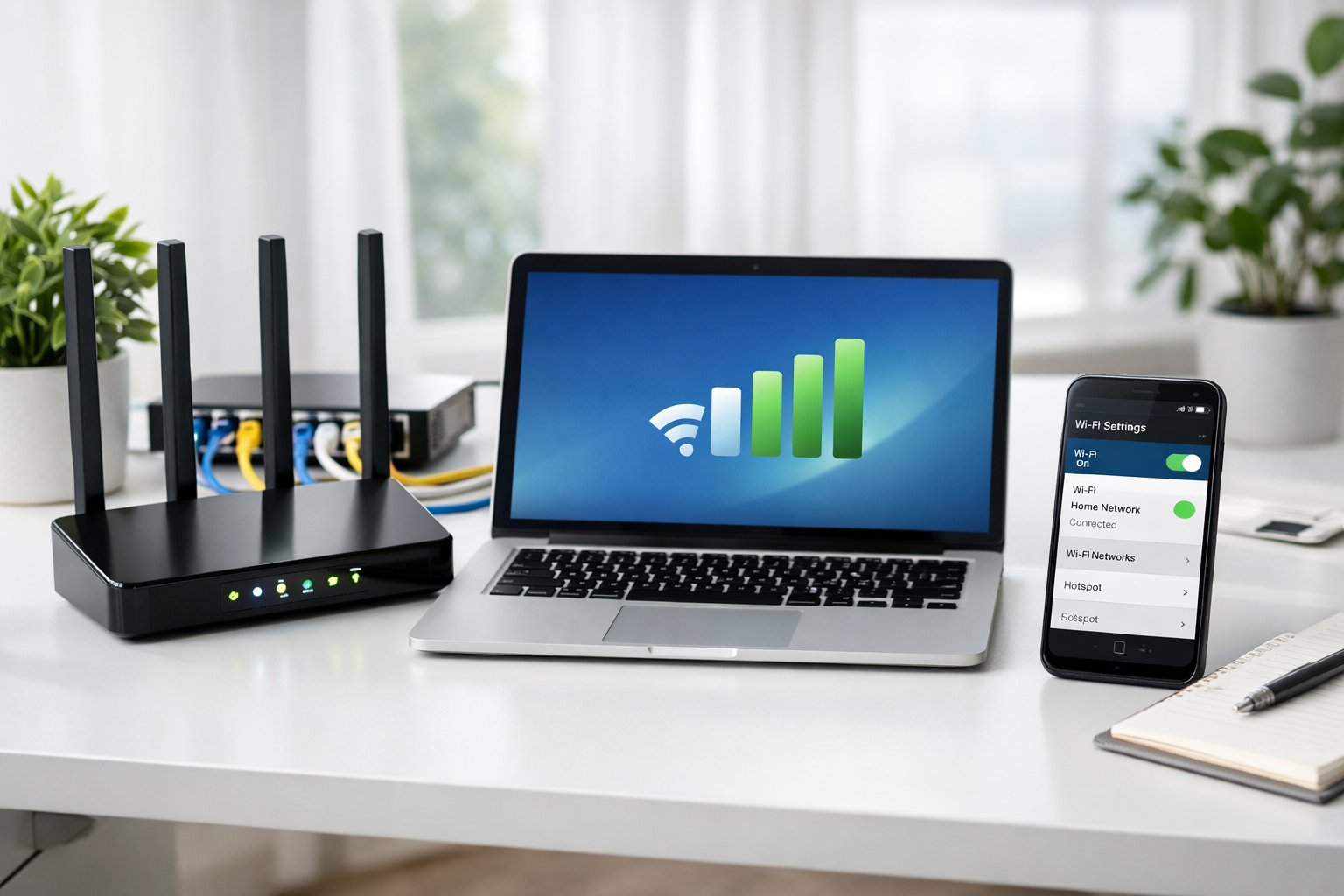
Remote workers need at least 25 Mbps download and 3 Mbps upload speeds for reliable video calls and file sharing. A quality Wi-Fi 6 router or mesh system, ethernet backup connection, and proper network security setup will handle most home office connectivity needs without breaking the bank.
• Speed requirements: 25+ Mbps download, 3+ Mbps upload minimum for professional remote work • Router choice: Wi-Fi 6 routers start around $100; mesh systems cost $200-400 but eliminate dead zones • Wired backup: Ethernet connections provide the most stable connection for important calls and uploads • Security essentials: Use WPA3 encryption, separate work network, and VPN when required by employer • Backup options: Mobile hotspots and cellular modems offer reliable internet redundancy • Signal optimization: Router placement, channel selection, and interference reduction boost performance • Cost planning: Internet upgrades typically cost $20-50/month more; equipment is a one-time $100-400 investment
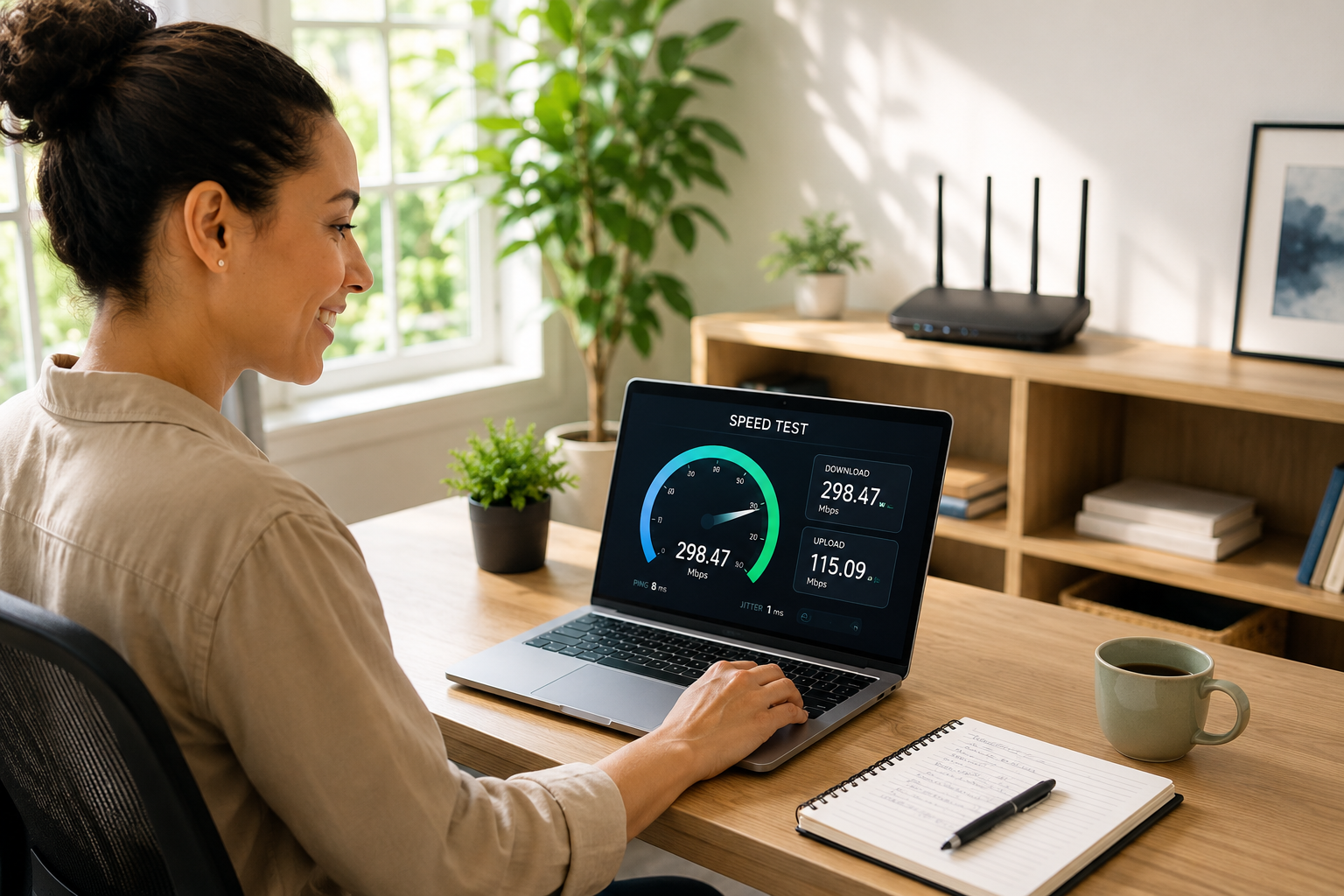
Most remote workers need 25 Mbps download and 3 Mbps upload speeds as a baseline for smooth video calls and file sharing [1]. This handles HD video conferencing, cloud file syncing, and basic multitasking without lag.
Speed requirements by activity:
Household considerations:
Choose faster speeds if you regularly upload large files, host video calls with many participants, or share bandwidth with family members streaming content during work hours.
Router placement makes the biggest difference in Wi-Fi performance. Position your router centrally, elevated, and away from walls or metal objects that block signals.
Immediate signal boosters:
Advanced optimization steps:
When to consider hardware upgrades:
Position your work device within 30 feet of the router with minimal walls between for best performance.
Wi-Fi 6 routers offer the best performance for remote work, with improved speed, capacity, and connection stability compared to older standards. Quality options start around $100 for single remote workers.
Top router categories:
Budget Wi-Fi 6 ($100-150):
Mid-range Wi-Fi 6 ($150-250):
High-end Wi-Fi 6E ($250-400):
Key features for remote workers:
Choose routers with at least four ethernet ports if you plan to wire critical devices like desktop computers or network storage.

Mesh systems eliminate dead zones and provide consistent coverage throughout larger homes, while traditional routers offer better performance and value for smaller spaces with good signal coverage.
Choose mesh systems when:
Stick with traditional routers when:
Mesh system advantages:
Traditional router advantages:
Mesh systems typically cost $200-400 for whole-home coverage, while a quality traditional router runs $100-200.
Video call slowdowns usually stem from insufficient upload bandwidth, Wi-Fi interference, or competing network traffic. Start by testing your connection speed during peak usage times.
Immediate fixes:
Quality of Service (QoS) setup:
Advanced troubleshooting:
When to call your ISP:
Most video call issues resolve with proper QoS configuration and eliminating bandwidth competition during work hours.
Ethernet connections provide more stable, faster speeds with lower latency than Wi-Fi, making them ideal for critical work tasks like important video calls, large file uploads, and real-time collaboration.
Ethernet advantages:
Wi-Fi advantages:
Best of both approach:
When ethernet is essential:
Modern Wi-Fi 6 can match ethernet speeds for most office tasks, but wired connections remain more reliable for mission-critical work.
Mobile hotspots and cellular backup modems provide reliable internet redundancy for remote workers who can’t afford downtime during outages or service issues.
Mobile hotspot solutions:
Cellular backup modems:
Satellite internet backup:
Choosing backup options:
Plan for 20-50 GB monthly data usage for basic remote work tasks during outages.
Wi-Fi interference comes from competing networks, household devices, and physical barriers that block radio signals. Strategic router placement and channel optimization solve most coverage issues.
Common interference sources:
Interference reduction steps:
Dead zone solutions:
Physical optimization:
Professional site survey: Consider hiring a network professional if you have persistent coverage issues in a large home or complex layout with multiple interference sources.
Ethernet delivers consistently faster speeds and lower latency than Wi-Fi, but modern Wi-Fi 6 networks can match wired performance for most remote work tasks when properly configured.
Speed comparison:
Latency differences:
Reliability factors:
Best use cases:
Hybrid approach works best: Wire your primary work computer via ethernet while keeping Wi-Fi available for mobile devices and secondary tasks.
A reliable home office network starts with proper internet service, quality router placement, and security configuration that separates work traffic from personal devices [6].
Network planning steps:
1. Assess bandwidth needs:
2. Router selection and placement:
3. Network segmentation:
4. Wired backbone setup:
5. Security configuration:
6. Quality of Service (QoS):
Test your network thoroughly before important meetings or deadlines to identify potential issues.
Frequent disconnections usually indicate router overheating, ISP service issues, or Wi-Fi interference problems that worsen during peak usage times.
Common disconnection causes:
Troubleshooting steps:
1. Check physical connections:
2. Monitor disconnection patterns:
3. Router maintenance:
4. ISP communication:
5. Environmental factors:
Replace routers older than 4-5 years, as hardware degradation commonly causes intermittent connectivity issues.
Home Wi-Fi provides better speeds, lower costs, and unlimited data for full-time remote work, while mobile hotspots work best for temporary locations or backup connectivity.
Home Wi-Fi advantages:
Mobile hotspot advantages:
Cost comparison (monthly):
Data usage reality check:
Best approach: Use home Wi-Fi as primary connection with mobile hotspot backup for outages or travel. Most remote workers need 100+ GB monthly, making unlimited home internet more economical.
Internet upgrades for remote work typically cost $20-50 more per month for service plus $100-400 in one-time equipment costs, depending on your current setup and requirements.
Monthly service upgrades:
Equipment costs:
Hidden costs to consider:
ROI calculation:
Money-saving tips:
Most remote workers see positive ROI within 3-6 months from improved productivity and avoided alternative workspace costs.
Upgrade to WPA3 encryption, enable network segmentation, and add VPN protection to meet most employer security requirements for remote work connections [8].
Immediate security improvements:
Network segmentation:
VPN requirements:
Advanced security measures:
When to involve IT:
Document your security configuration for IT department review and approval before handling sensitive work data.
Q: What’s the minimum internet speed I need for Zoom calls? A: Zoom requires 1.5 Mbps up/down for HD video calls, but 5+ Mbps provides better quality with room for other devices. Plan for 10+ Mbps if you regularly host large meetings.
Q: Should I use 2.4 GHz or 5 GHz Wi-Fi for work? A: Use 5 GHz for faster speeds and less interference when close to your router. Switch to 2.4 GHz only if you need better range or have older devices that don’t support 5 GHz.
Q: How often should I restart my router? A: Restart your router monthly for optimal performance, or immediately if you experience slow speeds or connectivity issues. Most modern routers can run continuously but benefit from periodic reboots.
Q: Can I use a Wi-Fi extender instead of upgrading my router? A: Wi-Fi extenders can help with dead zones but typically reduce speeds by 50%. A new router or mesh system usually provides better overall performance for the same cost.
Q: Is satellite internet good enough for remote work? A: Modern satellite internet like Starlink can handle most remote work tasks, but higher latency (20-40ms) may affect real-time applications. It’s excellent for rural areas without cable or fiber options.
Q: How do I test if my internet is fast enough for work? A: Use speed test websites during your typical work hours to measure actual performance. Test both wired and Wi-Fi connections, and run tests while using work applications.
Q: Should I pay for business internet at home? A: Business internet offers better support and uptime guarantees but costs 2-3x more. Most remote workers do fine with residential service unless they have specific reliability or support requirements.
Q: What’s the difference between upload and download speeds? A: Download speed affects how fast you receive data (web browsing, video streaming). Upload speed affects sending data (video calls, file sharing, cloud backups). Remote workers need good upload speeds.
Q: How many devices can my router handle? A: Modern Wi-Fi 6 routers can handle 50+ devices, but performance depends on usage. Plan for 10-15 active devices for optimal performance in typical home office setups.
Q: Do I need a separate modem and router? A: Separate devices often provide better performance and flexibility for upgrades. Combo units work fine for basic needs but limit your options if one component needs replacement.
Q: Can weather affect my internet connection? A: Severe weather can affect cable and satellite connections. Fiber and underground cables are most reliable. Have a cellular backup plan for critical work during outages.
Q: How do I know if my router is too old? A: Replace routers older than 4-5 years or those using Wi-Fi 4 (802.11n) or older standards. Signs include frequent disconnections, slow speeds, and lack of security updates.
Setting up reliable connectivity for remote work doesn’t require expensive enterprise equipment. Most remote workers succeed with 25+ Mbps internet service, a quality Wi-Fi 6 router properly positioned, and ethernet backup for critical tasks.
Start with these essential steps: test your current speeds during work hours, upgrade to a modern router if yours is over 4 years old, and ensure proper security with WPA3 encryption and VPN when required.
Budget $100-400 for equipment upgrades and $20-50 monthly for faster internet service. The productivity gains and stress reduction from reliable connectivity typically pay for themselves within months.
Next steps:
[1] Remote Work Security Revisited Advanced Strategies For Protecting Your Business In 2026 – https://www.brickhost.com/remote-work-security-revisited-advanced-strategies-for-protecting-your-business-in-2026/
[3] A Guide To Keeping Remote Workers Safe And Secure – https://aag-it.com/a-guide-to-keeping-remote-workers-safe-and-secure/
[6] Secure Home Network Remote Work Guide – https://www.hp.com/us-en/shop/tech-takes/secure-home-network-remote-work-guide
[8] Remote Work Security Policy Refresh For 2026 – https://netguardia.com/governance-risk/policies/remote-work-security-policy-refresh-for-2026/